|
|
| Line 5: |
Line 5: |
| | <h1>Station Inventory Reporting</h1> | | <h1>Station Inventory Reporting</h1> |
| | | | |
| − | The airline you represent will require that you enter your locations inventory counts on agreed timelines, this page will walk you through how it is possible to do this via SkyLog. | + | The airline you represent requires that you complete inventory counts at your station on agreed timelines. This page explains how to perform, submit, and manage inventory counts within SkyLog. |
| | | | |
| | + | --- |
| | | | |
| | <h2>Station Inventory Reporting Location</h2> | | <h2>Station Inventory Reporting Location</h2> |
| | | | |
| − | Pressing the “Inventory Counts” option from “Daily Activities” -> “Inventory Counts” will display the
| + | Navigate to: |
| − | following page;
| + | “Daily Activities” -> “Inventory Counts” |
| − | | |
| − | | |
| | | | |
| | [[File:Count_1.png]] | | [[File:Count_1.png]] |
| | | | |
| | + | You will see a list of all inventory counts for your station. |
| | | | |
| − | In the above screen I am logged in as someone at the Los Angeles caterer of British Airways so I see all the reports for Los Angeles (LAX) but each station will only see their own reports.
| + | - The most recent counts appear at the top |
| | + | - A count in “Pending” status has not yet been completed |
| | + | - Historical counts will show statuses such as Approved, Partially Approved, or Cancelled |
| | | | |
| | + | You can: |
| | + | - View a count using the Show icon |
| | + | [[File:Count_2.png]] |
| | + | - Edit a pending count using the Edit icon |
| | + | [[File:Count_3.png]] |
| | | | |
| − | The counts are listed with the most recent at the top, in the example above the top line show a count at “Pending” status which means it has not taken place yet but is expected to happen on the 7th of November (The expected date). Below this line you see all the previous counts will have all been completed and approved or cancelled in the past.
| + | --- |
| | | | |
| | + | <h2>Understanding Count Statuses</h2> |
| | | | |
| − | You can view the detail of a report by pressing the Show Icon on the line you want to view.
| + | Inventory counts may have the following statuses: |
| | | | |
| − | [[File:Count_2.png]]
| + | - '''Pending''' – Count has not yet been completed |
| | + | - '''Complete / Under Review''' – Submitted and awaiting review |
| | + | - '''Recount''' – Certain lines require re-validation |
| | + | - '''Approved''' – Fully reviewed and accepted |
| | + | - '''Partially Approved''' – Automatically concluded with some unresolved items |
| | + | - '''Cancelled''' – Cancelled manually or by system (legacy scenarios only) |
| | | | |
| | + | <h3>New Status: Partially Approved</h3> |
| | | | |
| − | If the report is pending you can also edit it and enter/change count figures by pressing the Edit Icon on the line you want to edit.
| + | A count is marked as '''Partially Approved''' when: |
| | + | - A new count is triggered before the previous count has been fully approved |
| | | | |
| − | [[File:Count_3.png]]
| + | In this scenario: |
| | + | - All reviewed/accepted lines are processed as normal |
| | + | - Any lines still marked as '''Query = Yes''' remain unresolved |
| | + | - These items will be flagged in downstream processes (e.g. requisitions) |
| | + | - These items will also be highlighted in the next inventory count |
| | | | |
| | + | This ensures that work already completed is not lost. |
| | | | |
| | + | --- |
| | | | |
| | <h2>General Tips and Guidelines about Stock Counting</h2> | | <h2>General Tips and Guidelines about Stock Counting</h2> |
| | | | |
| − | This section is not related to the system but just provides some general tips and guidelines concerning inventory counting in general.
| + | • Count at the end of the operational day |
| − | | + | • Include all stock (backup and floating where required) |
| − | • It is best to count at the end of the operational day, i.e. after all departing flights have left and all arriving flights have been unloaded.
| + | • Always use the defined stocking unit (e.g. box, piece) |
| − | | + | • Convert quantities where needed |
| − | • If required to count floating stock, you need to count everything in the kitchen that also includes stock waiting to be loaded to outbound aircraft and stock unloaded from arriving aircraft that has not yet been processed.
| + | • Ensure receipts on count day are handled correctly to avoid forecasting errors |
| − | | |
| − | • The unit of measure in which quantities should be entered is the stocking unit and this is shown on the count screens (see later). You should be aware that for some items the stocking unit may be a box and others it may be a piece. You will always enter both back up and floating quantity in the same unit (the stocking unit). This means that you are likely to have to convert one or the other. For example, if the stocking unit is a box then counting the backup stock which is usually in boxes will be straight forward but the floating stock will typically be in pieces (opened) so whatever you count will need to be converted to boxes. On the other hand, if the stocking unit is a piece then it will work the other way around and floating stock will be straight forward but when you count boxes in the backup store you will need to convert them to pieces before entering them in the system.
| |
| − | | |
| − | • Pay special attention to any receipts received on the day of the count. If you have such a situation, you should receive the shipment with that day’s date and include it in your count figures. If you do not include the figures in your count, for example if the receipt was late just before the count was finished and there is not time for you to include it, then you must receive it into the system the next day with the next day’s date. If you don’t do this the forecasting system will think that the count included that shipment and miscalculate the suggested order quantities.
| |
| − | | |
| | | | |
| | + | --- |
| | | | |
| | <h2>Editing an Inventory Count</h2> | | <h2>Editing an Inventory Count</h2> |
| | | | |
| − | As described in the previous section if you have a count at “Pending status” you can enter the count figures by pressing the Edit Icon.
| + | Open a Pending count and click Edit: |
| | | | |
| | [[File:Count_4.png]] | | [[File:Count_4.png]] |
| | | | |
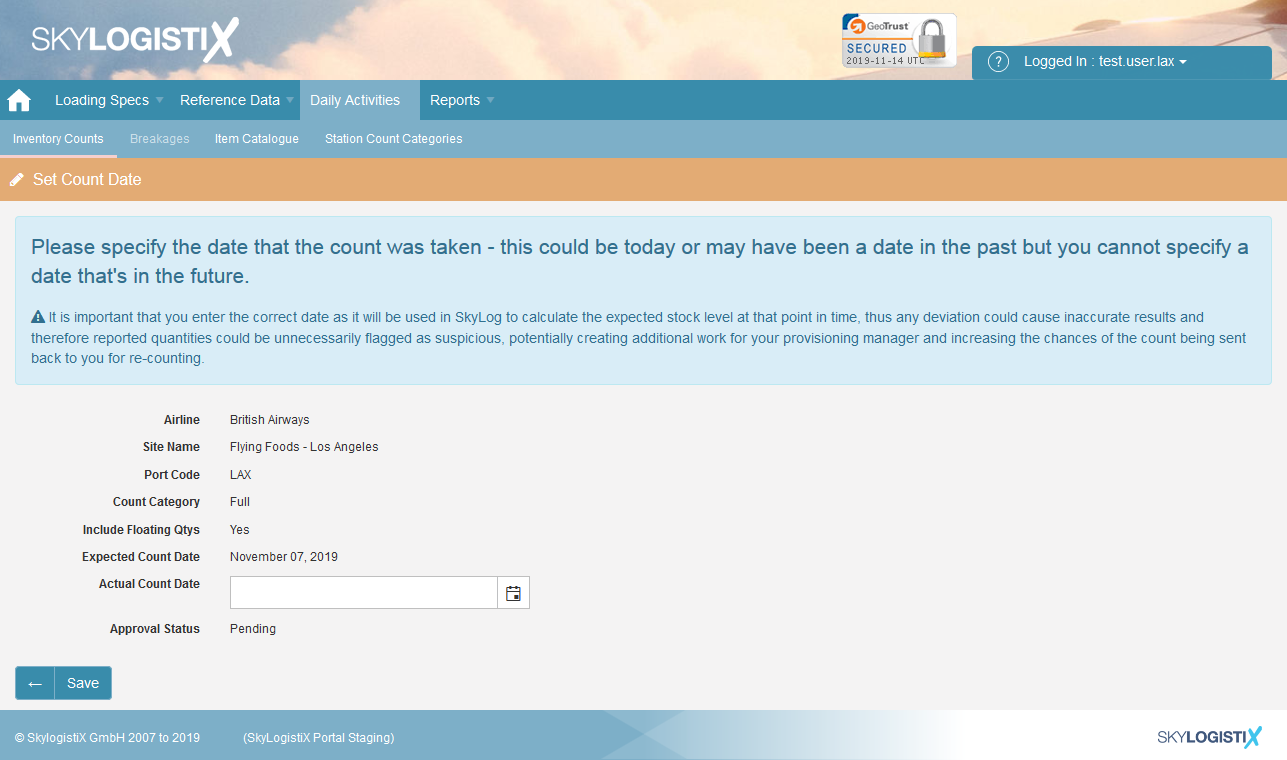
| − | | + | Enter the '''Actual Count Date''': |
| − | The following screen will be displayed;
| |
| | | | |
| | [[File:Count_5.png]] | | [[File:Count_5.png]] |
| | | | |
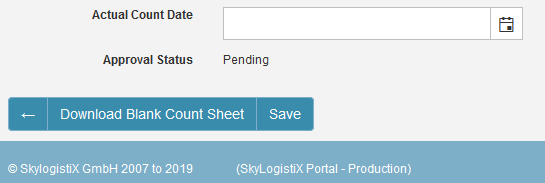
| − | | + | If applicable, download the Excel sheet: |
| − | In this screen you are required to enter the “Actual Count Date” in which the inventory count took place, this is a vital piece of information which will need to be accurate for the planning and forecasting side of Skylog.
| |
| − | | |
| − | If your station is setup for uploading the count details via an excel update you will be sent an email with it attached when the count is created but if you misplace it you can download a fresh copy from the same screen as the “Download Blank Count Sheet” button will be presented;
| |
| − | | |
| | | | |
| | [[File:Count_6.png]] | | [[File:Count_6.png]] |
| | | | |
| − | | + | Proceed to enter quantities: |
| − | Once you click “Save” you will be presented the page to enter the amount of stock you have counted against each item setup for your station;
| |
| − | | |
| | | | |
| | [[File:Count_7.png]] | | [[File:Count_7.png]] |
| | | | |
| | + | Quantity fields: |
| | + | - '''Backup''' = storage inventory |
| | + | - '''Float''' = operational inventory (kitchen, unloading, loading etc.) |
| | | | |
| − | In the detail section against each line you may see two quantity fields, “Backup” quantity is the amount you have in your store room/ area and “Float” quantity is any inventory you have outside the backup store e.g. on the kitchen floor. You will need to enter a figure against each line so if there is no inventory you should enter a zero. If you only see a backup quantity it means that you are not expected to count the floating stock but if you do see a floating quantity field, then you must count the floating stock. Floating stock means all stock on your facility at the time of the count which includes stock waiting to be loaded to outgoing aircraft and stock that has been received from arriving aircraft but not yet processed. It is most efficient and will help to get accurate and consistent measures of the floating stock if you perform the count at the close of the operational day after all departing aircraft for that day have been loaded and all arriving aircraft have been unloaded.
| + | Pagination example: |
| − | | |
| − | | |
| − | The detail section will always display in pages of 10 at a time in the example below we can see there are 338 items in the count and this is shown over 34 pages.
| |
| − | | |
| | | | |
| | [[File:Count_8.png]] | | [[File:Count_8.png]] |
| | | | |
| − | | + | Buttons: |
| − | You can move backwards and forwards through the pages with the arrow keys. You can also display everything on one screen by changing the drop down for “10” to “All” or select a certain number between 10 and 100 as well.
| |
| − | | |
| − | At the bottom of the page you will see the following buttons;
| |
| − | | |
| | | | |
| | [[File:Count_9.png]] | | [[File:Count_9.png]] |
| | | | |
| | + | • '''Upload Completed Count Sheet''' |
| | + | • '''View Uploaded File Errors''' |
| | + | • '''Save and Continue''' |
| | + | • '''Save and Exit''' |
| | + | • '''Submit''' |
| | | | |
| − | • '''Upload Completed Count Sheet''' – If your station is setup to accept population of the count via an excel upload this will be presented to you, please follow the steps when clicked on uploading the completed document.
| + | When submitted: |
| − | | + | - Status changes to '''Under Review''' |
| − | • '''View Uploaded File Errors''' – Again only visible for stations that upload counts via excel, this will detail any errors once you have attempted an upload.
| + | - Editing is no longer possible |
| − | | |
| − | • '''Save and Continue''' - Allows you to save what you have entered but will leave you in the screen.
| |
| − | | |
| − | • '''Save and Exit''' – Saves anything you have entered but will exit the page and return you to the main “Inventory Count” page.
| |
| − | | |
| − | • '''Submit''' - Will save your work and mark the count as complete and change the status to “Pending Review” after this you will no longer be able to change any of the figures. The next step is that Skylogistix will review what you have entered and may come back to you to do a recount – see later section in this manual for details of recounts.
| |
| | | | |
| | + | --- |
| | | | |
| | <h2>Adding an Item to a Count</h2> | | <h2>Adding an Item to a Count</h2> |
| | | | |
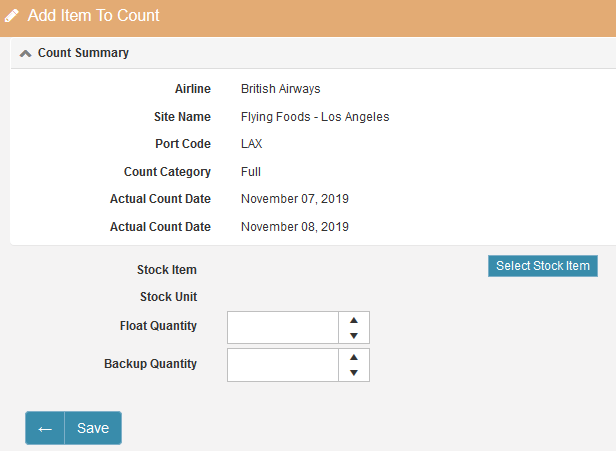
| − | | + | If an item is missing: |
| − | The list of items shown on the count detail page should include all the items you are expected to have at your location. If, however you have an item that is not showing you can add it with the add item button at the top of the page.
| |
| | | | |
| | [[File:Count_10.png]] | | [[File:Count_10.png]] |
| | | | |
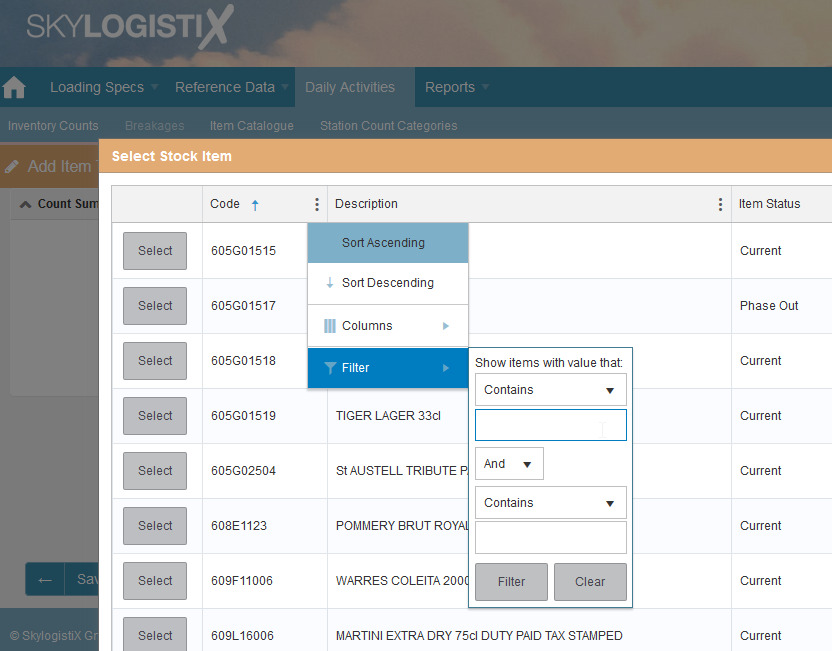
| − | | + | Select item: |
| − | This will display the following;
| |
| | | | |
| | [[File:Count_11.png]] | | [[File:Count_11.png]] |
| − |
| |
| − |
| |
| − | Press the “Select Stock Item” button to search and choose the item you want to add. (Use the three dots under “Code” or “Description” to filter for a specific item) then click “Select”.
| |
| − |
| |
| | [[File:Count_12.png]] | | [[File:Count_12.png]] |
| | | | |
| | + | Enter quantities accordingly. |
| | | | |
| − | Once the item is added you can then fill in the “Float” and “Backup” quantities.
| + | --- |
| − | | |
| | | | |
| | <h2>Submitting a Count</h2> | | <h2>Submitting a Count</h2> |
| Line 128: |
Line 127: |
| | <h3><u>Submitting via the portal</u></h3> | | <h3><u>Submitting via the portal</u></h3> |
| | | | |
| − | As mentioned previously to submit a count to Skylogistix for review you simply press the Submit button at the bottom of the page, once you have entered quantities for all items. Until you do this the count is '''NOT''' marked as complete, and doesn’t move to the next stage thus you will continue to get email reminders that your count is overdue.
| + | After entering all quantities: |
| − | | + | - Click '''Submit''' |
| − | If you haven’t entered a figure for every item, you will see the message shown below and the count will not be submitted. You will then need to enter the missing figures and click submit again.
| + | - All items must have values (including zero) |
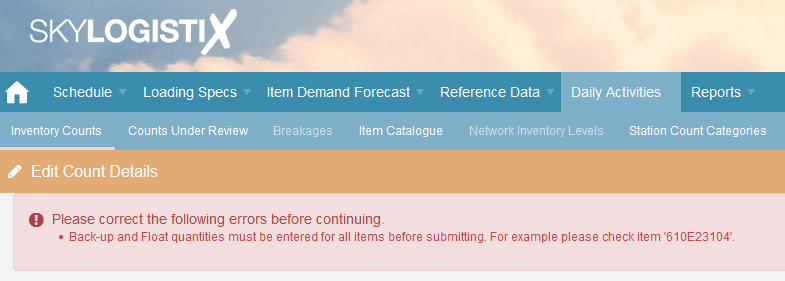
| | | | |
| | [[File:Count_13.png]] | | [[File:Count_13.png]] |
| | | | |
| | + | After submission: |
| | + | - Status updates to '''Complete / Under Review''' |
| | + | - A confirmation email is sent |
| | + | - The count enters review workflow |
| | | | |
| − | Once you have successfully submitted the count you will be returned to the main page that lists all your counts and you should see that the count is now marked as “Complete”, You will now no longer be able to edit the count and you should receive an email confirming that the count has been submitted.
| + | --- |
| − | | |
| − | After a while the status will also change to “Under Review” and you will receive an email telling you that the count has been submitted successfully, which means SkylogistiX is reviewing the figures you entered.
| |
| − | | |
| − | | |
| | | | |
| | <h3><u>Submitting via a count sheet</u></h3> | | <h3><u>Submitting via a count sheet</u></h3> |
| | | | |
| − | If decide to upload a count sheet instead of manually entering quantities you '''<u>MUST</u>''' download a copy from the actual count date page, or from the bottom bar of the count, as each excel document is unique to each count thus cannot be used on other counts.
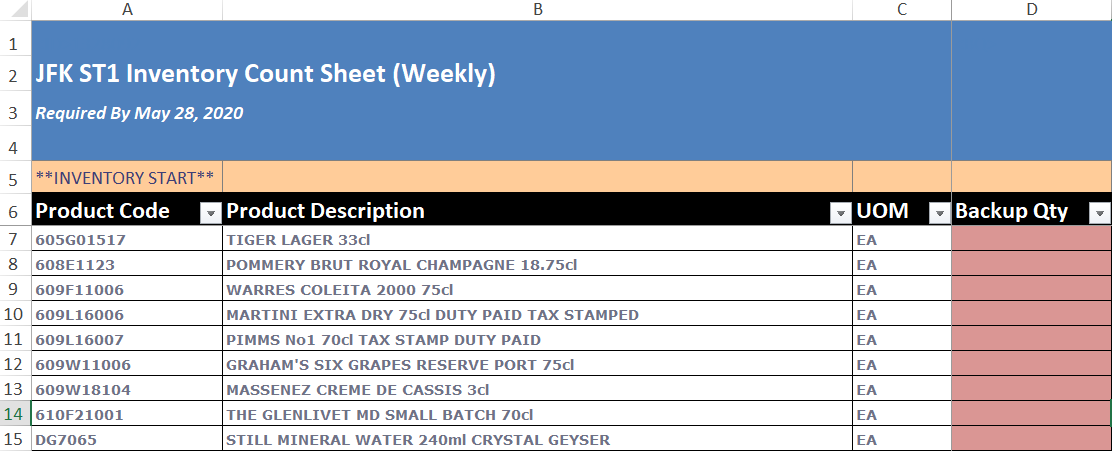
| + | - Always download the sheet from the specific count |
| − | | + | - Fill in all required quantities |
| − | You will be presented with the below sheet once you open the excel document, this is all the items associated with your station, and each line requires a quantity to be entered;
| |
| | | | |
| | [[File:Stock_Count_Excel_1.PNG]] | | [[File:Stock_Count_Excel_1.PNG]] |
| − |
| |
| − |
| |
| − | There is also two other sheets in the document, 'User' and 'Item Reference'
| |
| − |
| |
| | [[File:Stock_Count_Excel_4.PNG]] | | [[File:Stock_Count_Excel_4.PNG]] |
| − |
| |
| − |
| |
| − | The 'User' sheet is to enter items not referenced on the main sheet, i.e. items that have been incorrectly sent to your location which you do not use but still need to recorded, simply enter the code and quantities.
| |
| − |
| |
| | [[File:Stock_Count_Excel_2.PNG]] | | [[File:Stock_Count_Excel_2.PNG]] |
| | + | [[File:Stock_Count_Excel_5.PNG]] |
| | | | |
| | + | Upload via: |
| | + | - “Upload Completed Count Sheet” |
| | | | |
| − | 'Item Reference' sheet is just all the items the airline you are counting for has setup in the SkyLog system for you to locate item codes if required for the 'User' sheet.
| + | Use “View Uploaded File Errors” if needed. |
| | | | |
| | + | --- |
| | | | |
| − | Once the count document is completely filled out you can then upload it into the specific count you downloaded it from, in the 'Inventory Counts' page, click the pencil icon and select 'Upload Completed Count Sheet' where you can then select the document from your PC.
| + | <h2>Resubmitting a Recount</h2> |
| | | | |
| − | [[File:Stock_Count_Excel_5.PNG]]
| + | If a recount is requested: |
| − | | + | - Open the count in status '''Recount''' |
| − | | + | - Filter by '''Query = Yes''' |
| − | Once uploaded all quantities will be listed against the items in the SkyLog screen, if they are not then you need to click 'View Uploaded File Errors' button at the bottom the count screen to idenify the issues with the sheet, fix and reupload.
| |
| | | | |
| | + | [[File:Count_14.png]] |
| | + | [[File:Count_15.png]] |
| | | | |
| | + | Actions: |
| | + | - Adjust quantities if required |
| | + | - Add comments where needed |
| | + | - Submit again |
| | | | |
| − | <h2>Resubmitting a Recount</h2>
| + | Multiple recount cycles may occur. |
| | | | |
| − | After SkylogistiX have reviewed your count if they have a query/ concern over any of the figures you have submitted you will receive an email advising you of the need to recount certain items. If you get such an email you should go to the main Inventory Reporting page described in the above section 4.1 where you should see a count marked status “Recount”.
| + | --- |
| − |
| |
| − | Press the Edit icon, and then once that page is displayed set the Query filter to “Yes” to see all the lines that have been queried by SkylogistiX.
| |
| | | | |
| − | [[File:Count_14.png]]
| + | <h2>Important Change: Count Lifecycle</h2> |
| | | | |
| | + | Previously: |
| | + | - Open counts were cancelled when a new count was created |
| | | | |
| − | In the example below you can see 5 item lines are in Query.
| + | Now: |
| | + | - Open counts are marked as '''Partially Approved''' instead |
| | | | |
| − | [[File:Count_15.png]]
| + | This means: |
| | + | - Work already completed is retained |
| | + | - Only unresolved items remain flagged |
| | + | - Users are not required to restart the process |
| | | | |
| | + | --- |
| | | | |
| − | For each line if you see what is wrong you can change the figures on the above screen but you will see any comment from SkylogistiX regarding why they queried the count in the “4PL Provider Comment” column. If you want to enter a comment to justify your figure you can enter it in the “Station Comment” column.
| + | <h2>Flagged Items from Previous Counts</h2> |
| − | When you have dealt with all the queried lines press “Submit” and the count will be resubmitted to Skylogistix for a further review. Hopefully this time it will be OK but it is possible that some lines are queried again and you will be requested to repeat the process for some or all the lines previously queried.
| |
| | | | |
| − | <h2>Station Inventory Counts Which Are Cancelled By the System</h2>
| + | If an item was not resolved in a previous count: |
| | + | - It will be '''highlighted in the next count''' |
| | + | - It should be carefully checked during counting |
| | | | |
| − | You may see that some counts which are in status: "Cancelled By System"; the system will not a station to have two active inventory counts for the same count category at any given time, thus, when a new count is triggered, if there's an existing count which remains open [for the same station and count category] - then the existing (not-yet-completed) count will be cancelled by the system regardless. So, even if the provisioning manager is mid-way through reviewing a set of re-counted inventory figures or the caterer is mid-way through detailing their inventory figures it will make NO difference - the count will be cancelled, which could lead to frustration on the part of the user (as their time will have been for nothing).
| + | (Insert screenshot placeholder: [[File:Flagged_Items_Example.png]]) |
| | | | |
| − | When the existing count is cancelled will depend upon a number of things:
| + | This helps improve accuracy and reduce recurring discrepancies. |
| | | | |
| − | a) when the next count date is
| + | --- |
| | | | |
| − | b) the "notify days" setting, which is typically 3x days but can be 1 to 7x days and is configureble per count category
| + | <h2>System Timing Considerations</h2> |
| | | | |
| − | c) when the scheduler service runs to call the station-count agent
| + | New counts are created automatically by the scheduler. |
| | + | Timing depends on: |
| | + | - Count frequency |
| | + | - Notify days configuration |
| | + | - Scheduler timing |
| | | | |
| − | | + | Although exact timing cannot be guaranteed: |
| | + | - Notifications are sent to ensure timely completion |
| | | | |
| − | The Scheduler service polls at regular intervals looking for new counts to create, however, it does not run on the stroke of midnight each day; the scheduler is stopped and re-started for maintenance and can be stopped and re-started at any time of the day or night. This means that there is no fixed/hard time when new counts will be triggered and existing (open) counts will be cancelled - so its not possible to say EXACTLY when an existing count may be subject to cancellation; as such, it is not possible to forewarn users of an impendending deadline. However, SkyLog sends numerous emails to alert and remind a caterer when they must complete and submit their inventory figures - provided that these alerts and reminders are acted upon by the caterer in a timely manner, there should be minimal risk of a count ever cancelled mid-way through through taking action on the count.
| + | Users should always complete counts as early as possible to avoid partial approvals. |
| | + | `` |
Please use our [Tips and Tricks] page for understanding how the SkySuite portal works and how to navigate faster and easier.
Station Inventory Reporting
The airline you represent requires that you complete inventory counts at your station on agreed timelines. This page explains how to perform, submit, and manage inventory counts within SkyLog.
---
Station Inventory Reporting Location
Navigate to:
“Daily Activities” -> “Inventory Counts”
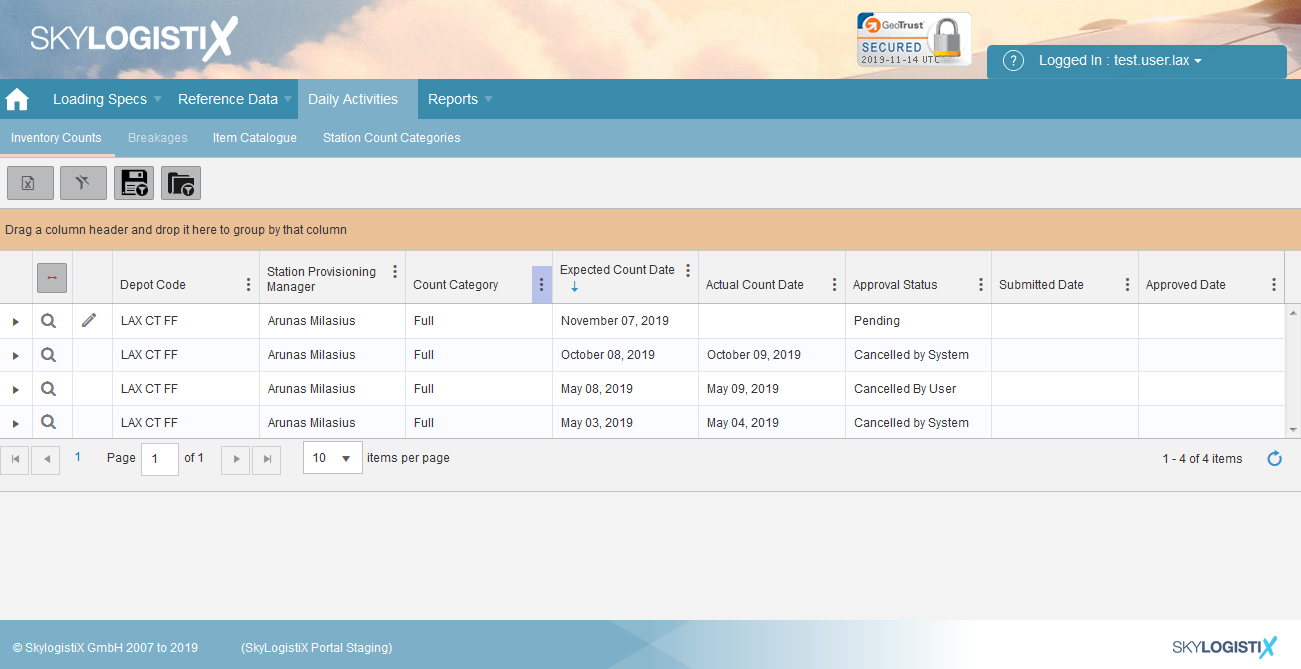
You will see a list of all inventory counts for your station.
- The most recent counts appear at the top
- A count in “Pending” status has not yet been completed
- Historical counts will show statuses such as Approved, Partially Approved, or Cancelled
You can:
- View a count using the Show icon
 - Edit a pending count using the Edit icon

---
Understanding Count Statuses
Inventory counts may have the following statuses:
- Pending – Count has not yet been completed
- Complete / Under Review – Submitted and awaiting review
- Recount – Certain lines require re-validation
- Approved – Fully reviewed and accepted
- Partially Approved – Automatically concluded with some unresolved items
- Cancelled – Cancelled manually or by system (legacy scenarios only)
New Status: Partially Approved
A count is marked as Partially Approved when:
- A new count is triggered before the previous count has been fully approved
In this scenario:
- All reviewed/accepted lines are processed as normal
- Any lines still marked as Query = Yes remain unresolved
- These items will be flagged in downstream processes (e.g. requisitions)
- These items will also be highlighted in the next inventory count
This ensures that work already completed is not lost.
---
General Tips and Guidelines about Stock Counting
• Count at the end of the operational day
• Include all stock (backup and floating where required)
• Always use the defined stocking unit (e.g. box, piece)
• Convert quantities where needed
• Ensure receipts on count day are handled correctly to avoid forecasting errors
---
Editing an Inventory Count
Open a Pending count and click Edit:

Enter the Actual Count Date:
If applicable, download the Excel sheet:
Proceed to enter quantities:
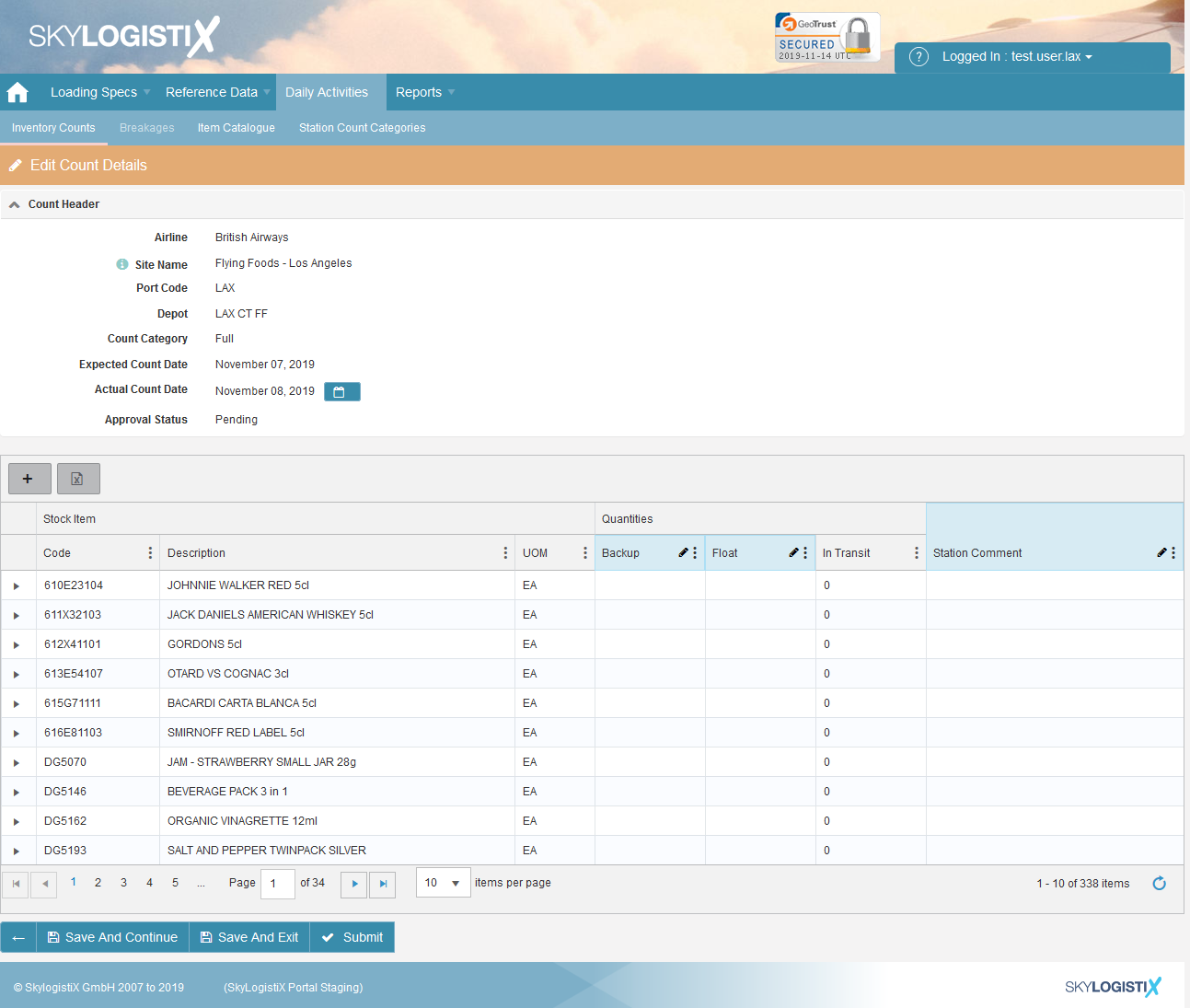
Quantity fields:
- Backup = storage inventory
- Float = operational inventory (kitchen, unloading, loading etc.)
Pagination example:

Buttons:

• Upload Completed Count Sheet
• View Uploaded File Errors
• Save and Continue
• Save and Exit
• Submit
When submitted:
- Status changes to Under Review
- Editing is no longer possible
---
Adding an Item to a Count
If an item is missing:

Select item:
Enter quantities accordingly.
---
Submitting a Count
Submitting via the portal
After entering all quantities:
- Click Submit
- All items must have values (including zero)
After submission:
- Status updates to Complete / Under Review
- A confirmation email is sent
- The count enters review workflow
---
Submitting via a count sheet
- Always download the sheet from the specific count
- Fill in all required quantities

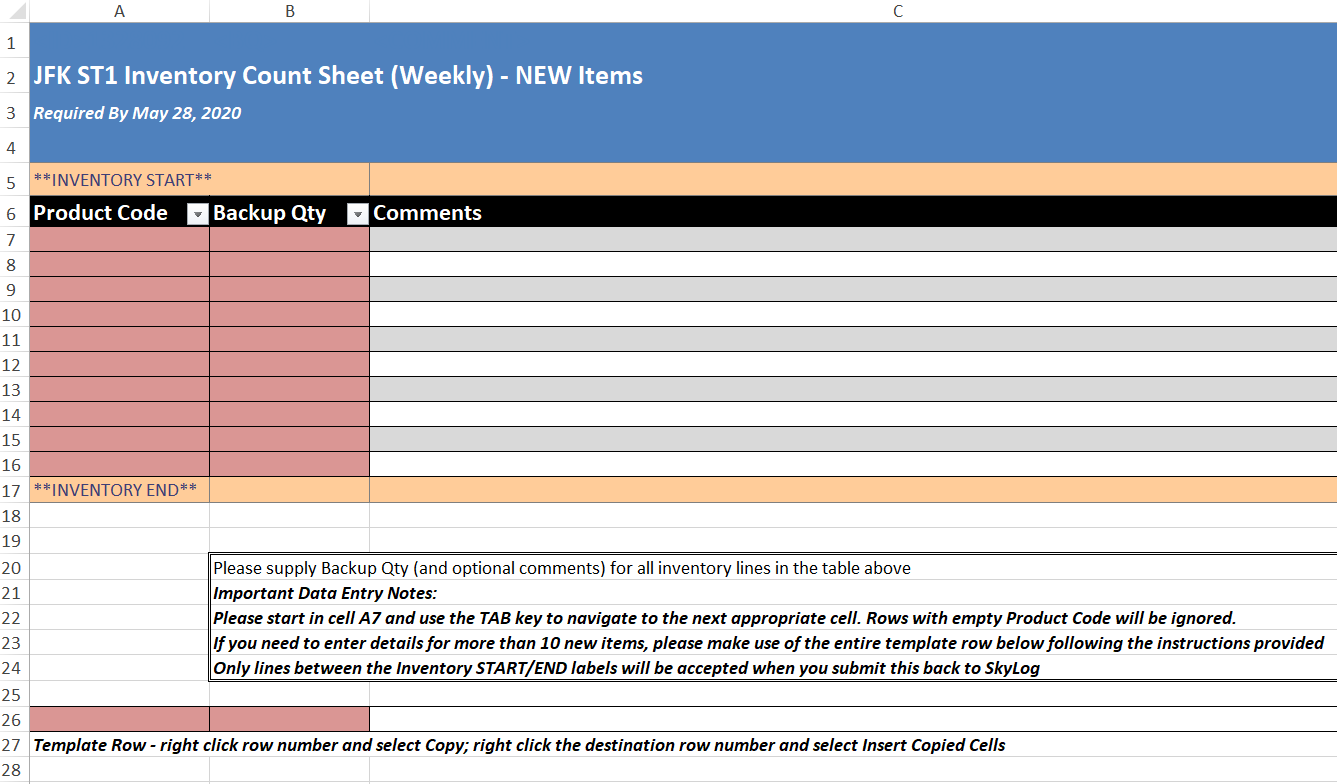
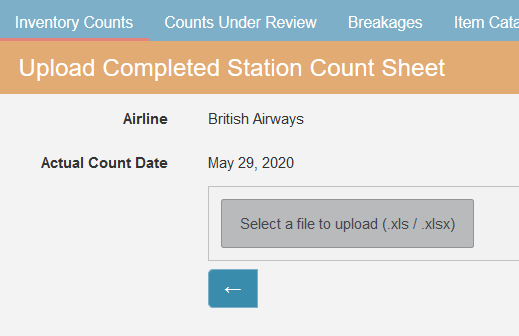
Upload via:
- “Upload Completed Count Sheet”
Use “View Uploaded File Errors” if needed.
---
Resubmitting a Recount
If a recount is requested:
- Open the count in status Recount
- Filter by Query = Yes
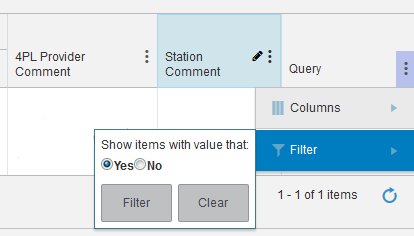
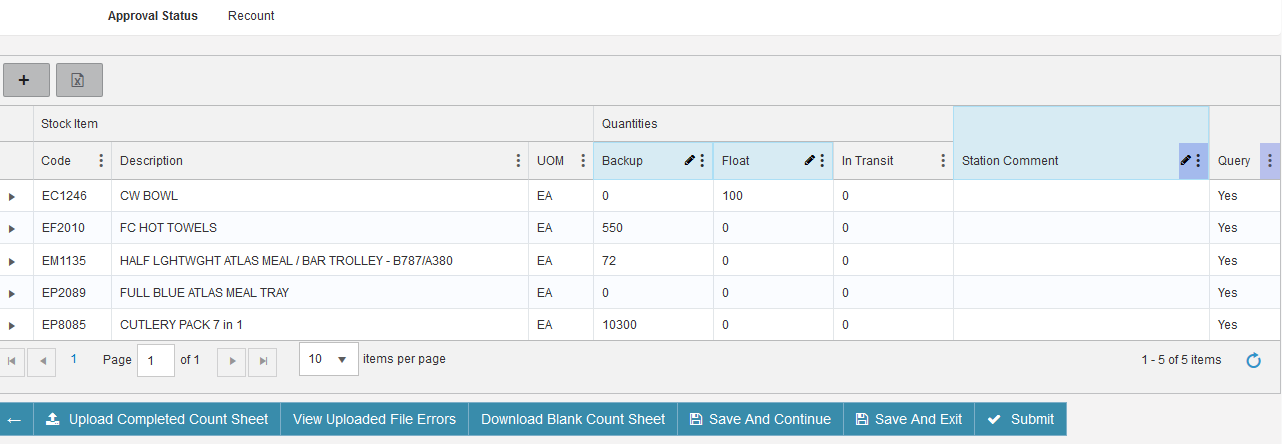
Actions:
- Adjust quantities if required
- Add comments where needed
- Submit again
Multiple recount cycles may occur.
---
Important Change: Count Lifecycle
Previously:
- Open counts were cancelled when a new count was created
Now:
- Open counts are marked as Partially Approved instead
This means:
- Work already completed is retained
- Only unresolved items remain flagged
- Users are not required to restart the process
---
Flagged Items from Previous Counts
If an item was not resolved in a previous count:
- It will be highlighted in the next count
- It should be carefully checked during counting
(Insert screenshot placeholder: File:Flagged Items Example.png)
This helps improve accuracy and reduce recurring discrepancies.
---
System Timing Considerations
New counts are created automatically by the scheduler.
Timing depends on:
- Count frequency
- Notify days configuration
- Scheduler timing
Although exact timing cannot be guaranteed:
- Notifications are sent to ensure timely completion
Users should always complete counts as early as possible to avoid partial approvals.
``

 - Edit a pending count using the Edit icon


